Ericha Font: A Practical Guide to Integrating Display Typography Into Your Creative Workflow
Choosing the right typeface is rarely a casual decision. Whether you are designing a brand identity, preparing a social media campaign, or formatting a presentation, typography carries the tone of your message. Ericha, created by Gblack Id, is a display font that brings a distinctive handcrafted feel to any project. It includes basic punctuation, making it usable beyond simple wordmarks or titles. But how exactly does a decorative font like Ericha fit into a structured workflow? The answer depends on where you place it in your process, how you prepare your assets, and how you pair it with other tools and resources.
What Ericha Is and Where It Belongs in Your Process
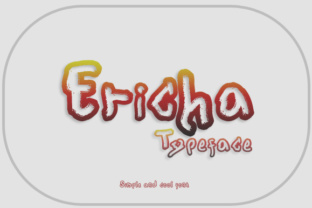
Ericha is a stylized display typeface with a handwritten, elegant character. Its letterforms carry a natural rhythm that works well for headlines, short phrases, logos, and accent text. Because it includes basic punctuation, you can use it for taglines, quotes, and call-to-action buttons without needing to manually add periods, commas, or apostrophes. This makes it more versatile than many decorative fonts, but it also means you need to understand its limitations. Display fonts like Ericha are not designed for long body copy. They thrive in short, high-visibility placements where their personality can shine without overwhelming the reader.
In practical terms, Ericha fits into the visual design stage of a project. Whether you are building a brand guide, designing an invitation, or creating a hero image for a blog post, you will likely reach for Ericha after you have established your layout and content structure. It is not a font you set and forget. It requires intentional placement and careful pairing with supporting typefaces.
Before the Project: Planning and Preparation
Integrating Ericha smoothly starts well before you open your design software. Preparation involves three main areas: defining the role of the font, checking compatibility with your tools, and organizing your font library for easy access.
- Define its role. Decide whether Ericha will serve as the primary headline font, an accent element, or a logo-only typeface. This decision affects everything else, from color palette to spacing choices.
- Test compatibility. Ericha includes basic punctuation, but confirm that your design platform supports OpenType features or basic character sets. Most modern tools like Adobe Creative Suite, Canva, Figma, and Affinity products handle standard font files without issues. If you are using a web platform, check whether you can upload custom fonts or if you need a web font version.
- Organize your library. Keep Ericha in a dedicated folder with other display fonts. Tag it by style, weight, or use case so you can find it quickly when you need it. This saves time during busy project cycles.
Preparation also includes gathering reference materials. Look at other projects that use hand-drawn or script-style display fonts. Note how they handle spacing, size, and pairing. This research phase helps you avoid common pitfalls like overcrowding or poor contrast between font styles.
During the Project: Implementation and Execution
Once you begin designing, Ericha becomes a tool for emphasis and personality. Here is how to use it effectively within a typical workflow.
Pairing with supporting typefaces
Ericha works best when paired with a clean, neutral sans-serif or serif font for body text. The contrast between a decorative headline and a simple body font creates visual hierarchy without confusion. For example, pair Ericha with a font like Open Sans, Lato, or Merriweather. Keep the supporting font light or regular weight to let Ericha remain the focal point.
Sizing and spacing
Because Ericha has a handwritten quality, letter spacing and line height matter more than with geometric fonts. Start with generous tracking (letter spacing) and adjust downward. Tight tracking can make decorative fonts look messy. For headlines, set the font size large enough that the details in each character are visible. A good rule is to make Ericha headlines at least 36 points for print and 48 pixels for digital use, but always test at actual output size.
Color and background
Ericha’s organic shapes stand out best against solid, simple backgrounds. Avoid busy patterns or textures behind the text. If you use a multi-color background, place the font inside a simple shape or a semi-transparent overlay. Dark text on a light background or light text on a dark background both work well, but avoid low-contrast combinations like pastel on pastel.
Punctuation usage
Since Ericha includes basic punctuation, use periods, commas, and apostrophes naturally in short phrases. This is especially helpful for taglines, date lines, and short quotes. However, avoid long sentences that require multiple punctuation marks. The font’s decorative nature can make punctuation feel visually heavy if overused.
After the Project: Quality Control and Consistency
Once your design is complete, review how Ericha performs across different sizes and contexts. This is a critical step that many creators skip.
- Test at multiple sizes. What looks elegant at 48 pixels may lose legibility at 18 pixels. If you need to use Ericha at smaller sizes, consider scaling up the text or switching to a simpler font for that element.
- Check alignment. Handwritten fonts can have uneven baselines. Use alignment guides in your software to ensure the text sits consistently with other elements.
- Review consistency. If you are using Ericha across multiple pages or assets, make sure the same characters look the same each time. Some design tools render fonts differently depending on the canvas size or export format. Export a preview of each asset and compare them side by side.
Quality control also means checking how the font interacts with other parts of your project. For example, if you place Ericha text over an image, does the contrast remain strong enough? If you export to PDF or PNG, do the characters render smoothly? Taking these extra steps prevents issues when you share or publish your work.
Integrating Ericha With Other Tools, Resources, and Assets
No font works in isolation. Ericha becomes part of a larger system that includes your design software, image assets, brand colors, and even your content strategy.
- Design software. Most tools allow you to install custom fonts easily. On Windows, install the font file to the system font directory. On Mac, use Font Book. In cloud-based tools like Canva or Figma, you may need to upload the font file directly. Always confirm that the tool supports the file format (usually .ttf or .otf).
- Brand assets. If Ericha is part of a brand identity, document its usage in your brand guidelines. Include examples of correct size, spacing, color, and pairing. This helps other team members or freelancers use it consistently.
- Content planning. Since Ericha is best for short text, plan your content around that limitation. Write headlines, taglines, and call-to-action phrases before you start designing. This ensures you have suitable text ready when you apply the font.
- Collaboration. If you share design files with others, include the font file in your project folder or embed the font when possible. This avoids missing font errors and keeps the design looking as intended.
Example 1: Social media campaign
You are creating a series of Instagram posts for a new product launch. The brand has a modern, elegant feel. Start by writing the core message for each post, keeping it to three to six words. Open your design tool, create a solid background that matches your brand color, and set Ericha as the headline font at 72 pixels. Add a subtle drop shadow for depth. For the supporting caption, use a clean sans-serif at 24 pixels. Export each post as a PNG and review the contrast before scheduling.
Example 2: Event invitation
You are designing a digital invite for a workshop or networking event. Ericha works perfectly for the event name and date. Place the event name in Ericha at 48 points, centered on a light background. Below it, add the date and time in a simple serif font. Use Ericha’s punctuation for the comma between the day and time. Keep the layout minimal. Export as a PDF for email distribution or as a high-res image for social sharing.
Example 3: Blog post header image
For a blog post titled “Creative Workflows That Actually Work,” use Ericha for the main headline. The subtitle, written in a lighter weight sans-serif, provides context. Set the headline at 64 pixels, the subtitle at 28 pixels. Add a geometric shape behind the headline to separate it visually from the background. This approach balances the decorative font with structure, making the header easy to read at a glance.
Long-Term Use and Organization
If you use Ericha regularly, treat it as a permanent part of your font toolkit. Keep the original font file in a secure backup location. Create a usage log for each project where you apply the font, noting what sizes and pairings worked well. This documentation helps you replicate successful designs and avoid repeating mistakes.
Over time, you will develop a sense of when Ericha is the right choice and when a simpler font would serve better. That instinct comes from practical experience, not theory. Use Ericha in real projects, test it with real audiences, and refine your approach based on what works.
Decorative fonts like Ericha add personality and warmth to your work, but they require thoughtful integration. By planning ahead, implementing with care, and reviewing the results critically, you can make this typeface a reliable part of your creative process rather than a decorative afterthought.