Laser Dots: A Practical Guide to Using This Dotted Display Font Effectively
When you first encounter Laser Dots, the appeal is immediate. This dotted sans serif display font carries a futuristic, playful energy that feels both retro and modern. Its distinctive dot-matrix character structure makes it stand out in a sea of standard typefaces, and many designers, marketers, and content creators are drawn to its unique personality. But like any specialized font, using Laser Dots effectively requires more than just downloading it and typing away. Without a clear understanding of its strengths and limitations, your projects can end up looking cluttered, unreadable, or simply out of place.
This article walks through the common mistakes people make with Laser Dots, explains why those missteps hurt your results, and offers practical corrections so you can use this font with confidence. Whether you are a seasoned designer or a small business owner trying to create your own promotional materials, these insights will save you time, frustration, and potentially costly revisions.
What Laser Dots Actually Is
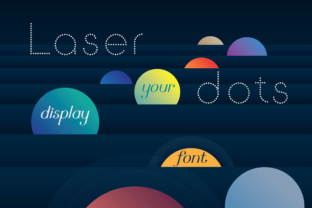
Laser Dots belongs to the family of display fonts, which means it is designed primarily for headlines, short text blocks, and visual impact rather than long-form reading. Its letterforms are constructed from clearly visible dots, evoking the look of early digital displays or punched tape. This gives it a distinct technical, industrial, or even sci-fi feel depending on how you use it. The sans serif base keeps the shapes relatively clean, but the dotted texture introduces a visual noise that can work beautifully in moderation and fail completely when overused or misapplied.
Understanding this distinction is the first step toward using Laser Dots well. It is not a workhorse text font. It is a specialty tool for grabbing attention and setting a mood. If you approach it as you would a neutral sans serif like Helvetica or Arial, you are already heading in the wrong direction.
Mistake One: Using Laser Dots for Body Text
The most common error people make with laser-dot fonts is treating them as a primary text face for paragraphs, product descriptions, or email bodies. The dotted construction, while visually interesting, reduces legibility at small sizes and across long stretches of text. Readers have to work harder to recognize letterforms, and eye fatigue sets in quickly. This is especially problematic on screens where the dots can alias or blur.
How this affects your results: Visitors to your site or readers of your document may bounce before finishing the first paragraph. If you are selling a product or conveying important information, this directly undermines your message. In print, the issue is compounded because the dots can fill in or break apart depending on the printing method and paper quality.
Better approach: Reserve Laser Dots for headlines, subheadings, pull quotes, logos, or short promotional banners. Use a clean, legible companion font for the body text. A simple sans serif or serif that contrasts with the dotted style will create hierarchy and improve overall readability. For example, pair Laser Dots with a neutral typeface like Open Sans, Lato, or Source Sans Pro. The contrast between the dotted display face and a smooth body face creates visual interest without sacrificing usability.
Mistake Two: Ignoring Size and Spacing Requirements
Display fonts, especially those with non-standard construction like Laser Dots, often require more generous spacing than typical text fonts. Many users make the mistake of leaving the default kerning and leading unchanged, resulting in cramped letterforms where the dots visually collide or merge. This destroys the intended dot-by-dot clarity and makes the text look messy.
What to check: Before you finalize any design with Laser Dots, adjust the tracking (letter spacing) and leading (line spacing). Increase tracking slightly so that each dotted letter has room to breathe. The dots should be clearly separated from one another, not touching or overlapping unless you are going for a specific distressed effect. For headlines, adding 10 to 20 percent more tracking than your default often improves clarity significantly. For line spacing, allow extra vertical space so the descenders and ascenders of dotted characters do not clutter adjacent lines.
Realistic example: Imagine a concert poster using Laser Dots for the band name and date. If the tracking is too tight, the dots merge and the word becomes a fuzzy block. With proper spacing, each letter remains crisp and the dot structure is visible, giving the poster a clean, technical look that enhances the theme.
Mistake Three: Overlooking Context and Audience Fit
Laser Dots has a strong personality, and that personality is not right for every project. A common oversight is using this font in contexts where the visual tone clashes with the message or audience expectations. For instance, a law firm's website, a medical brochure, or a financial services report would likely feel incongruous with a dotted, tech-inspired display font. The mismatch can undermine trust and professionalism.
How this hurts your communication: Your audience forms an impression within seconds. If the typeface says "playful retro tech" but your content says "serious financial advice," the inconsistency creates cognitive dissonance. Readers may question your credibility or simply feel confused about your brand.
Better approach: Use Laser Dots deliberately for projects where its aesthetic enhances the message. It works well for tech startups, gaming events, creative workshops, children's products, music festivals, retro-themed designs, science fiction content, and any brand that wants to emphasize innovation or digital culture. Before committing to it, ask yourself whether the dotted style reinforces or undercuts the emotional response you want to evoke. If the answer is ambiguous, choose a more neutral display font and save Laser Dots for a project where it feels essential.
Mistake Four: Downloading from Unreliable Sources
This mistake often escapes attention until it is too late. Many users search for free or inexpensive versions of Laser Dots and end up downloading fonts from shady websites that offer incomplete character sets, broken glyphs, incorrect spacing tables, or even malware. The font file itself may be a poor reproduction of the original, with inconsistent dot patterns or missing punctuation.
Why this matters: A corrupted or incomplete font file can cause printing errors, display glitches on different operating systems, and missing characters that leave you scrambling. Worse, if you use such a font commercially, you may be infringing on the original designer's rights, exposing yourself to legal liability. The time you save by downloading a pirated or poorly sourced version is quickly lost to troubleshooting and redesigns.
What to do instead: Purchase Laser Dots from reputable foundries or marketplaces like MyFonts, Adobe Fonts, Fontspring, or Creative Market. These platforms verify the quality of the font files, provide proper licensing, and offer support if something goes wrong. If you are on a tight budget, look for free alternatives that offer a similar dotted aesthetic but come from a trustworthy source with clear licensing terms. The upfront investment in a legitimate font pays for itself in reliability, quality, and peace of mind.
Mistake Five: Neglecting to Test Across Mediums
A font that looks perfect on your screen at 72 pixels may behave very differently in print, on a projector, or on a mobile device. Laser Dots, with its fine dot structure, is particularly sensitive to rendering conditions. Many people finalize a design without testing it in the actual context where it will be viewed.
Common failures: On a low-resolution screen, the dots may appear jagged or disappear entirely. When printed on uncoated paper, the ink may spread and fill in the gaps between dots, turning a crisp dotted font into a muddy solid shape. At small sizes on a phone screen, the dots become too small to distinguish, and the text becomes illegible.
Practical advice: Always test Laser Dots at the actual size and medium you intend to use. Create a sample file with representative text and view it on different devices, print it on the target paper stock, or project it at the intended distance. Adjust size, spacing, and weight based on what you observe. If the font comes in multiple weights or styles, consider using a bolder weight for smaller sizes or lower-resolution environments. This testing step separates a polished final product from an amateurish one.
Getting the Most Out of Laser Dots
When used with care, Laser Dots can elevate your design and give it a distinctive voice. The key is to treat it as a specialty ingredient rather than a universal solution. Use it sparingly, pair it thoughtfully with simpler fonts, and always prioritize readability for your audience. Avoid the temptation to use it just because it looks cool, and instead ask whether it serves the message and the medium.
Take the time to learn the font's quirks. Experiment with color, size, and spacing to find the sweet spot where the dotted construction adds texture without sacrificing clarity. Look at examples from designers who have used similar display fonts effectively in posters, logos, and digital content. Notice how they balance the dotted elements with negative space and how they choose contexts where the futuristic, technical feel aligns with the brand's identity.
If you are a small business owner or blogger creating your own materials, start with small applications. Use Laser Dots for a single headline or a logo element, and pair it with a clean sans serif for everything else. This approach lets you test the waters without committing to a full redesign. As you become more comfortable with how it behaves, you can expand its use into other areas of your branding.
Final Checks Before Committing to Laser Dots
Before you make a final decision to use Laser Dots in a project, run through this quick checklist:
- Is the size appropriate? For headlines and short text only, not body copy.
- Does the context match? The dotted style should reinforce your message, not contradict it.
- Have I adjusted spacing? Increase tracking and leading to preserve dot clarity.
- Is the font source reliable? Purchase from a reputable foundry with proper licensing.
- Did I test across mediums? Check rendering on screens, print, and projection.
- Is there a good companion font? Pair with a clean, legible typeface for body text.
- Does the audience need to read comfortably? If the answer is no, proceed. If yes, reconsider.
By following these guidelines, you avoid the common pitfalls that turn a promising display font into a frustration. Laser Dots can be a powerful addition to your typography toolkit, but only when you respect its nature as a decorative, impact-driven typeface. Use it deliberately, test it thoroughly, and let its unique dot-based character shine where it works best.